How to Install Tote-Pilot on Your Phone Today (No App Store Needed)
Learn how to save Tote-Pilot directly to your phone's home screen as a Progressive Web App (PWA) for instant updates and zero storage clutter.
One of the most frequent questions we receive is: "When is Tote-Pilot coming to the App Store?" The answer is simple. Native iOS and Android apps are on our roadmap and will be built. However, waiting months to build three different codebases before launching was not an option. Click here to start organizing your home with Tote-Pilot today. I wanted to put this platform into your hands immediately, regardless of what phone or tablet you use. To make that happen, we built Tote-Pilot as a Progressive Web App (PWA).
What is a Progressive Web App?
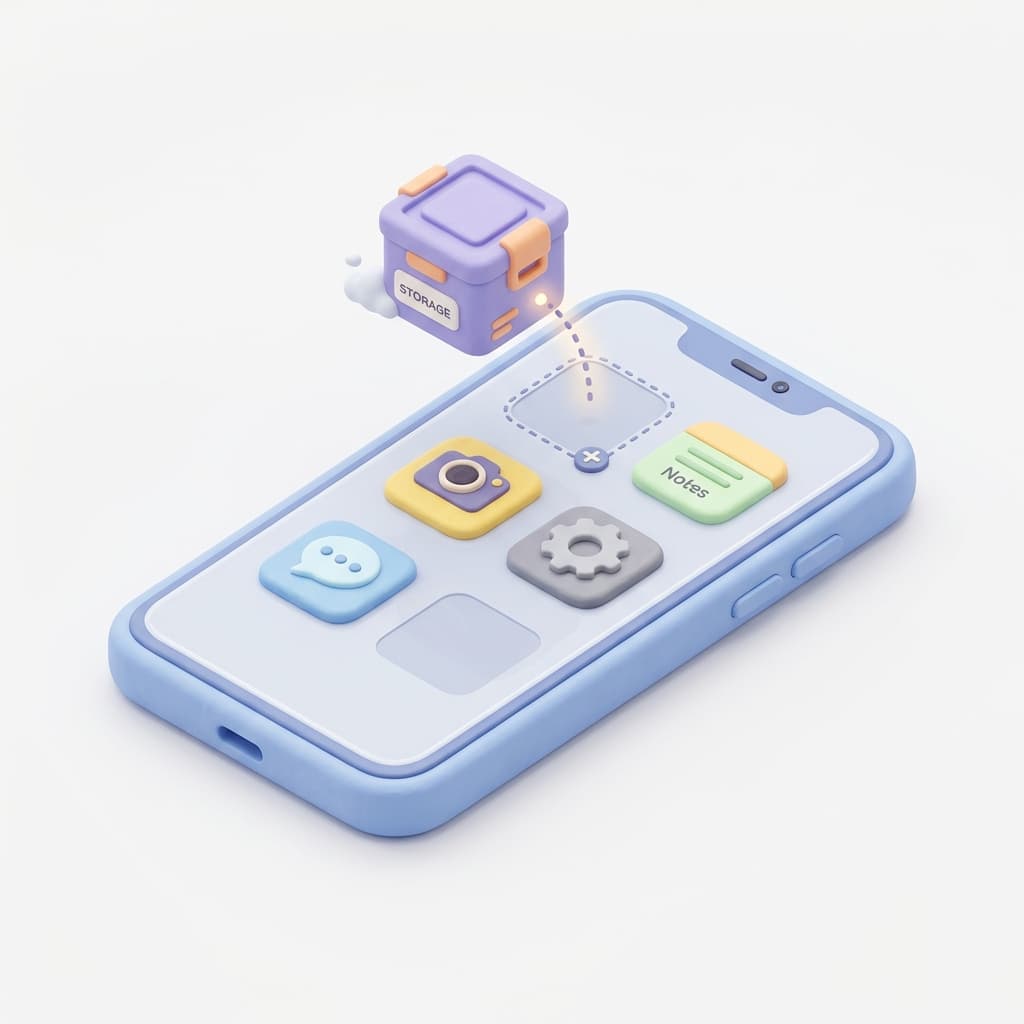
A PWA is a modern web application that functions exactly like a native app installed from an app store. Instead of downloading a massive file, you save a shortcut directly to your home screen. It gives you the convenience of an app without the bloat.
Using Tote-Pilot as a PWA offers major advantages:
- Zero Storage Bloat: It occupies almost zero space on your device, leaving room for your photos and videos.
- Instant Updates: The moment we push a fix or a new feature, you get it instantly. You never have to wait for app store approvals.
- Home Screen Access: It runs in its own window, without browser bars, complete with a clean icon on your home screen.
How to Install Tote-Pilot
Installing the app on your device takes less than ten seconds. Here is how to do it:
For iPhone and iPad (Safari)
- Open Safari and navigate to the Tote-Pilot website.
- Tap the Share button (the square with an arrow pointing up) at the bottom of the screen.
- Scroll down and tap Add to Home Screen.
- Tap Add in the top-right corner to confirm.
For Android (Chrome)
- Open Chrome and navigate to the Tote-Pilot website.
- Tap the three-dot menu in the top-right corner.
- Tap Add to Home screen (or tap the install banner if it appears at the bottom).
- Follow the on-screen prompts to confirm the installation.
Once added, tap the icon on your screen, log in, and you are ready to go. Click here to start your Home Inventory with Tote-Pilot.